

Back In My Day…
Back in the early days of the web, building a website was a straightforward affair. You’d write some HTML, style it with CSS, and maybe add some JavaScript (or jQuery if you weren’t a masochist), FTP it to your Apache web server, and voilà! You had a website. If you needed data from the server, you’d usually just leverage something like PHP for server-side rendering and database interactions. And maybe, just maybe, if you wanted something really fancy, you’d reach for Flash (RIP), Java Applets (RIP), or Silverlight (RIP). Sure the standards were, well, unstandardized, but overall the web was a simpler place.
These days, it seems you have no end of choices for every level of the stack. If you just want to write plain HTML, CSS, and JavaScript, you can totally still do that. But you can also slap in a CSS preprocessor like Sass or Less, a UI library like Bootstrap or Tailwind, or maybe you want type-safe JavaScript with TypeScript. That’s just scratching the surface of static websites though, what if you want something more reactive? Well then you have even more options like React, Vue, Angular, Svelte, Solid, Lit, and the list grows with each passing day. Then we move onto things like server-side rendering (SSR) where you have options like Next.js, Nuxt, SvelteKit, and yes, even PHP. All this is to say that there is xno shortage of ways to build a website these days, and frankly, you’d be forgiven for thinking that traditional static HTML/CSS/JS is dead.
But it’s not.
Motivation
When I first built my website, I didn’t really have an idea of what I would have on it. I had a vague idea of “some projects and maybe some blog posts” and that’s about it. Though I got my programming journey started with web dev way back when I was 10 years old, and have long since mastered HTML and CSS, I was no designer. I was always more a technical person and my artistic/creative side was never really developed. So I checked out Squarespace since I had seen it advertised on every YouTube channel under the sun, found a template I liked, and published a website with some projects listed; it was pretty easy and I had it done in an afternoon. Then the website remained unchanged for years until I finally thought to myself:
“You know, I’m paying $20 a month for a static website that I can’t really customize all that much. Is that really a good use of my money??”
No, obviously. The answer is no.
My Propensity For Overengineering
So I started thinking up some ideas on how I could build a new website. At this point, I had furthered my software engineering skills and had stuff that I actually wanted to write about so I knew a proper blog was in order. I didn’t really want to deploy a Wordpress website because I thought that was a bit much, and I didn’t really care for any of the other options out there. Recently, I had developed several applications with NestJS and Spring Boot so I thought maybe I could develop my own sort of microblog platform. It would really just be a series of RESTful endpoints, some auth, and a database to store posts. I could add a comments section later if I wanted to and I could even add an admin panel to manage posts. I’d probably use React for the frontend, Redux Toolkit for the state management and data fetching, easy. For hosting, I could probably set this up on AWS, deploy a Fargate cluster with an Elastic Load Balancer, RDS for the database, S3 for static assets, CloudFront for CDN, Route53 for DNS, the works. I would manage it all with AWS CDK keeping everything nice and tidy in one place. Sounds like a pretty good plan, right? Right?
No, obviously. The answer is no.
I realized pretty quickly that without a cost savings plan, I’d be paying close to double what Squarespace was charging me. With the cost savings plan, I’d probably be around the same price but even though I was getting ultimate freedom with this approach for the same price, I also was opting into a lot of additional maintenance work. Then, an even more sobering thought came to me:
“Brother… Who do you think you are? Casey Muratori? Andrew Kelley?? Linus Torvalds??? No one is going to care about Kasim Ahmic’s technical blog that much.”
Back To Reality
Well as usual, I was right. I always am. I didn’t need even a fraction of what I had just described. I won’t have anything that needs reactivity on the frontend and I certainly don’t need a backend at all. For what I’m planning, I could just as easily write a handful of HTML files, and ship them as is like Fabrice Bellard does with his website. These files would serve as the raw data and the web server would serve as the API, easy. Furthermore, I was pretty misguided with my original design as I was thinking of a blog as a dynamic application when in reality, it’s really just a collection of static documents. There won’t be dozens of posts added every day, there won’t be hundreds of users commenting and chatting with one another, it’s just going to be me writing up a post once a month or so. Finally, even though the original architecture was considering scalability, which it really wouldn’t need, I somehow completely overlooked the fact that a static website is about as scalable as it gets. Think about it, what would scale better?
- A set of HTML files containing some text, served up via a CDN
- A Node.js application running on a Fargate cluster with a managed database in addition to a single HTML file and a bunch of JavaScript files served via a CDN
The answer, of course, is #1. At this point, it became clear to me that I had been spending far too much time in “enterprise” land where everything needs to be a microservice with OpenAPI documentation, must be scalable to millions of users, and must contain reusable components that can be shared across teams (despite them never actually being used). I had completely forgotten my roots as a web developer where simplicity was king so I decided for the first time in a long time, I was going to keep things simple and just deploy a static website.
Static Site Generators
As I’ve previously said, I’m not the best designer out there. I can write CSS with the best of them in order to create a website that I’ve been given a proper design spec for, but to create said design myself? Nah. I really didn’t want to have my personal website be where I try to explore my creative side so I decided to just go with a static site generator (SSG) and use some pre-existing template. Additionally, SSGs solve another problem I hadn’t even considered: automatically generating individual post pages, index pages, tags, archives, as well as pagination for all of those pages. Sure I could’ve done this manually, but that would’ve been a giant pain to set up and even worse to maintain.
Much like choosing a web framework, there are a number of options for SSGs. I didn’t spend too much time looking into all of them since I just wanted to get started with the project already so I took cursory glances at Jekyll, Gatsby, Eleventy, and Hugo. Here are some of my thoughts on each:
Jekyll
| Pros | Cons |
|---|---|
| One of the most popular SSGs out there | Slower build times compared to newer SSGs |
| Used by GitHub Pages | |
| Large community and ecosystem |
Gatsby
| Pros | Cons |
|---|---|
| Built on React, which I have experience with | Built on React, which I don’t want to use for this project |
| Rich plugin ecosystem |
Eleventy
| Pros | Cons |
|---|---|
| Simple and flexible | Don’t really like that I have to manage config files in JavaScript |
| Very fast build times |
Hugo
| Pros | Cons |
|---|---|
| Fastest build times of all the SSGs I looked at | None that I could find |
| Simple configuration with single/split config file options | |
| Large community and ecosystem |
Hardly the most scientific of comparisons I know, but ultimately I went with Hugo because it had exactly what I needed with none of the things I didn’t; but mostly, it just passed the vibe check. If I’m understanding all these SSGs correctly, it shouldn’t be too hard to swap between them if I change my mind later. Since the important stuff is all stored in markdown files, it should just be a matter of moving those over to the new system and making some theme tweaks if needed. So rather than agonize over the decision now, I’ll just pull the trigger on Hugo and see how I feel later.
Getting Started With Hugo
I remember having tried Hugo in the past but I got immediately put off by it because I didn’t like having to manage themes in Git submodules. I don’t know why, but that just seemed like a nightmare to me. Since then however, I’ve had to work on a few C++ projects, each of which had to use Git submodules to manage dependencies since package management in C++ is otherwise awful. It’s really not that bad so I’m not sure what younger me was so afraid of. Anyway, I started a new Hugo project, installed the Hugo Narrow theme, and got to work customizing it.
The first thing I did was start looking through the theme’s documentation to figure out how to change the various links on the homepage and footer. Turns out, all you have to do is edit the root _index.md file’s frontmatter and add the relevant fields. Here’s my current _index.md file:
---
dismissible: false
date: 2026-01-19
title: "Home"
author:
  name: "Kasim Ahmic"
  title: "Software Engineer. Tinkerer. Creator."
  description: "Welcome to my personal website where I share my projects, thoughts, and experiences in software development."
  avatar: "/images/avatar.webp"
  social:
    - name: "GitHub"
      url: "https://github.com/KasimAhmic"
      icon: "github"
    - name: "Twitter"
      url: "https://twitter.com/Kasim_Ahmic"
      icon: "twitter"
    - name: "Email"
      url: "mailto:kasim.ahmic@gmail.com"
      icon: "email"
---It’s pretty straightforward and it gives me the ability to add some extra content to the homepage as well if I ever want to.
The next thing I did was customize the various sections’ index pages to fix the wording up a bit. Exactly the same as editing the homepage, this is done by creating an _index.md file in the sections’ subdirectory under the content directory and filling it with the relevant frontmatter and content. For example, to customize the projects index page, I created a file at content/projects/_index.md with the following content:
---
title: "Projects"
layout: "projects"
---

Here you can find all of my projects, ranging from small experiments that have
long since been abandoned to large-scale projects that are actively maintained
and used in production by others.I did the same thing for the Posts, Tags, and Archives pages as well and now things were looking pretty good. I ran into an issue pretty quickly though when I tested the website on mobile. The Hugo Narrow theme applies a gradient over the cover images on posts and projects to add a bit of visual interest, but on mobile specifically, adding this gradient overlay caused the menu to appear behind the cover image making it impossible to use. I spent about an hour trying to figure it out, but no combination of CSS properties seemed to work. This was particularly odd to me because I have done similar things in the past and never had this weird z-index issue. Ultimately, I decided that the gradient just wasn’t worth the hassle and I removed it entirely. Unfortunately however, the best way to do this is to maintain your own version of the layout file meaning I had to copy themes/hugo-narrow/layouts/projects/index.html to layouts/projects/index.html, tweak it, and now I have to maintain that file myself, patching things as updates to the theme come out. It’s not ideal, but it is what it is.
Though I’m not a fan of this “copy the file and maintain your own version” approach, it is pretty powerful and flexible. The next thing I didn’t like about the Hugo Narrow theme was that the only way to search the website seemed to be open a Post or a Project, scroll down a bit, scroll up, and then click the search button in the little overlay that appears at the bottom of the screen. At first, I didn’t know this theme even had search support because my eyes just naturally ignore any sort of popups or overlays. This of course needed to be fixed so I perused through the theme’s contents and found that clicking the search button just calls a method from the Search object
that’s been conveniently placed into the Window object. A quick test of running window.Search.show() in the browser console confirmed that this was going to be an easy fix.
Modern web frameworks use a concept of components, which are just reusable pieces of UI code. Hugo doesn’t really have components, but it does have something called “partials” which behave similarly enough. They behave more like C/C++ macros than actual components, but it’s good enough for what I need. So I created a new partial at layouts/_partials/ui/search.html with the following content:
{{- if site.Params.header.showSearch | default true -}}
<button
  class="dropdown-toggle border-border bg-background text-muted-foreground hover:text-primary
  hover:bg-primary/10 focus:ring-primary/20 flex h-10 w-10 items-center justify-center
  rounded-lg border transition-all duration-300 ease-out hover:scale-105 focus:ring-2
  focus:outline-none active:scale-95"
  aria-label="{{ i18n "search" }}"
  onclick="window.Search.show()"
>
  {{ partial "features/icon.html" (dict "name" "search" "class" "relative z-10" "size" "md" "ariaLabel" (i18n "search")) }}
</button>
{{- end -}}You’ll notice that this partial uses another one called icon, which is provided by the theme and allows you to easily render icons. You can see how this vaguely resembles other framework’s concept of components, aiding in reusability and separation of concerns. One quick change to add it to the header later, and now you can search from any page on the website, right from the header.
Thoughts On The Workflow
I need to ramble for a second.
I’m still debating internally on how I feel about this copy/paste/maintain workflow. On one hand, it’s nice because it let’s you take full control over the layout and design of the website. On the other hand however, it forces you to take over the maintenance of the file as well. It’s similar to the whole custom backend + VPS versus static website debate I had with myself earlier, that is to say, full control versus ease of maintenance. I suppose I could just try harder to fix the issues and then open a PR to the theme’s repository, but I suspect eventually, I’ll come across some issue or some personal taste that doesn’t align with the maintainer’s vision for the theme and I’ll end up having to maintain my own version of the theme anyway. Perhaps that’s the way to go from the start; copy the entire theme into my repository, and use it as a base for my own custom theme? That way I have a fantastic design to start with and I can change things as I see fit without worrying about merge conflicts with the original theme. Managing Hugo templates would be a new experience for me, but it might be worth it in the long run. Then again, maybe I’m spending too much time worrying about a problem that doesn’t even exist yet. For now, I’ll just keep doing what I’m doing and if it becomes a problem, then I’ll reevaluate.
Building and Deploying
There isn’t much to say about building Hugo websites; you run hugo in the terminal, and less than a second later, you have a public directory with a few dozen HTML files ready for upload. Slap on the --minify flag, and you can reduce the size of the built artifacts. It should be noted that it doesn’t seem to minifiy all the files. I noticed several JavaScript files in particular that came from the theme were unaffected by the flag. As it stands right now, I’m not that concerned about it since the files are still pretty small but I’ll probably look into it at some point in the future. The only other thing to mention is the choice of CI/CD provider. Sure I could just build it locally and deploy it manually, but that’s cringe; let the machine do the work. Thankfully, GitHub Actions gives you 2,000 free minutes per month for private repositories which given the infrequency with which I plan on writing up articles, is way more than enough. I do also run a local Woodpecker CI server so if I ever need it, I can just set up a pipeline there as well, but for now, GitHub Actions is fine.
When it comes to deployment however, there’s a bit more to talk about, though only a bit. Since the stated goal of this project was to keep things simple and keep costs down, I concluded pretty early on that I wasn’t going to buy a VPS and load it with Nginx or Apache on it. Sure I could probably find a VPS provider that charges less than $10 a month, but then I still have to maintain the server itself. I’d have to apply security patches regularly, keep the OS up to date, keep any programs on there up to date, make sure the thing is entirely secure, and if anything goes wrong, I’m the one who has to fix it.
No thank you. For a low traffic personal blog such as this, I think the best option for me is to use some static hosting provider. The first one that comes to mind is GitHub Pages since it’s free for all GitHub users, I’m already familiar with it having used it for the AutoIt JS documentation website , it has a pretty simple workflow, and I could even assign a custom domain to it. Unfortunately, since it’s free, it does have some limitations, most notable of which is that you only have 1 GB of bandwidth per month. Again, I’m not anyone famous and I fully believe in optimization by any means necessary, so I’m unlikely to ever exceed that limit, but I also don’t want to have to worry about it at all. I’m not sure of GitHub’s policy on the matter, but I feel like 1 GB could be easily exceeded by all the bots and scrapers crawling the open internet, or in the worst case, some sort of DDoS attack.
After a bit more digging, I found Cloudflare Pages . It has a very generous free tier with unlimited bandwidth for static assets which, given that all my assets are static, means bandwidth is no longer a concern! However, if the workflow to get something uploaded to Cloudflare Pages is a pain, then it might not be worth it. Fortunately, it’s actually just a single command!
wrangler pages deploy --project-name kasimahmic ./publicLeveraging Cloudflare’s wrangler , you just pass the project name as defined in your Cloudflare dashboard, and the path to the directory containing the static assets you want to upload, and that’s it! The command will handle uploading all the files, invalidating the cache, and making sure everything is live on the internet. It’s really that simple. Of course wrangler can do a lot more like deploy Cloudflare Workers, manage KV storage, etc. but none of that is relevant to me so I won’t get into it.
Results
To recap, here’s what we’ve done so far:
- Set up a source controlled static site generator that takes markdown files as input and produces HTML as output
- Customized the theme to our liking
- Set up a CI/CD pipeline to automatically build and deploy the website
- Deployed the website to a static hosting provider
Now to analyze the benefits.
Page Load Speed
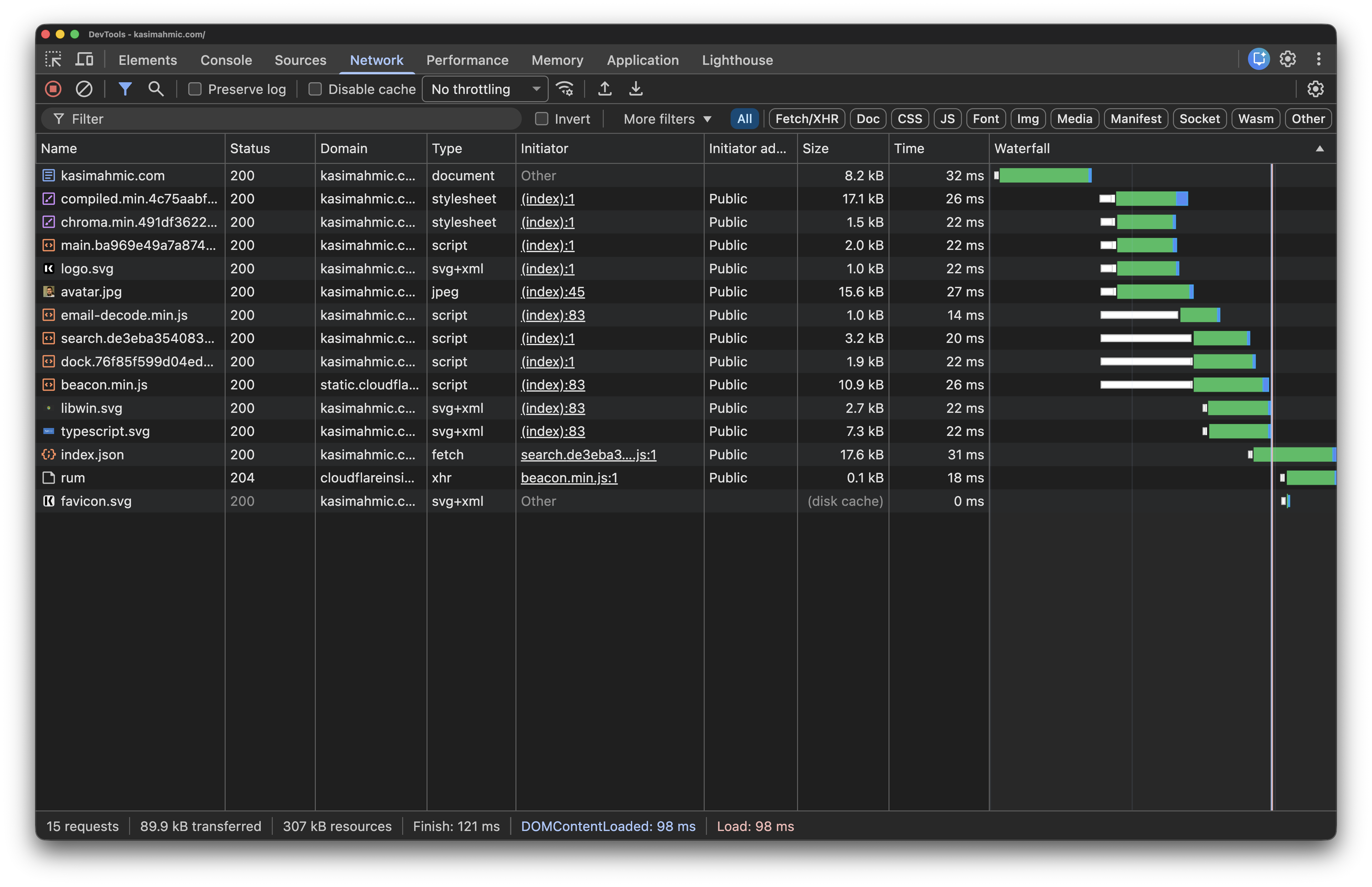
First and foremost, the page load speed is as fantastic as you’d expect from a static website. The homepage loads 89.9 KB of data in only 98ms with the entire page being ready in 121ms. To put these numbers into perspective, shipping React + ReactDOM alone would’ve been around ~55 KB minified and gzipped, and that’s before we add any of our own content!
Can your JavaScript backend do that? I don’t think so. —
Тsфdiиg (Alexey Kutepov), probably
Additionally, each of the requests finish in about ~25ms on average! It looks like we also have two blocks of assets being loaded in parallel, the first of which is all the critical stuff needed to render the page, and the second of which is mostly JavaScript that isn’t immediately needed and various images. I’m not seeing much room for improvement here as:
- Critical assets are small and load very quickly
- Loading of non-critical assets is deferred
- Cloudflare Pages serves everything up using HTTP/3
Maybe I can spend a little time optimizing the images a bit more as I’m noticing none of the SVG’s are being minified, but I doubt that will result in a significant improvement. I could maybe save another 5-8 KB or so by using WebP or AVIF for the avatar image instead of JPEG since I can’t use SVG there, unless I go for a more stylized avatar or something. At this point, we’re just nitpicking though, so let’s just move on for now. We can chase micro-optimizations later if we want to.
And boy oh boy do I want to…
Lighthouse
Lighthouse is a tool built into Chrome DevTools that audits web pages for performance, accessibility, best practices, and SEO. It’s a nice and easy way to identify glaring issues with your website with actionable feedback on how to fix them. So how did we do?
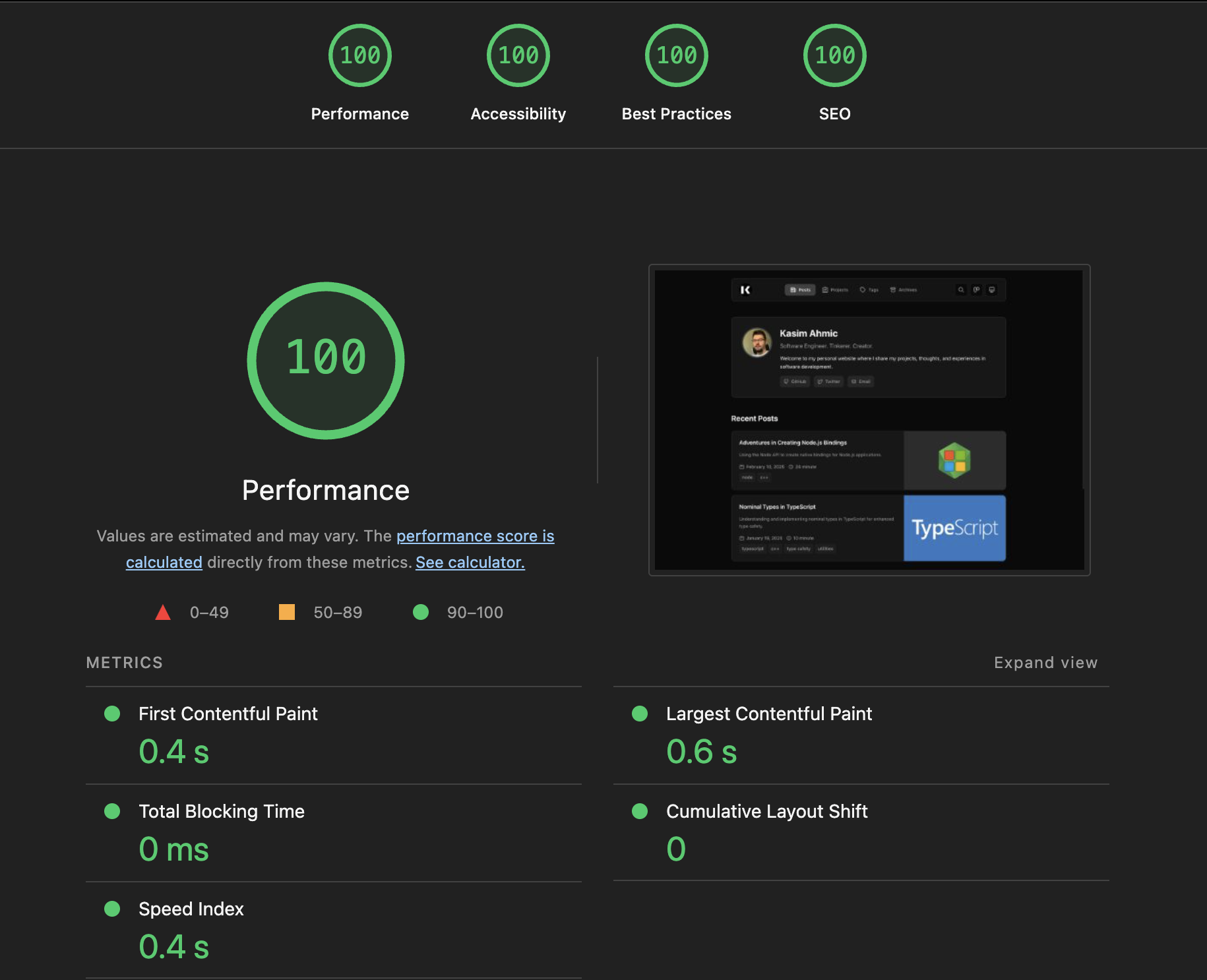
We got a perfect 100 in all categories! This isn’t all that surprising though since static websites are so incredibly simple and easy to optimize. That said, I was impressed to find the accessibility score was a 100 as well, excellent work tom2almighty !
You can review the full report here if you’re interested in the details. Now you may have noticed that despite getting a perfect score, there are still plenty of actionable items in there. There are some render blocking requests, LCP request discovery can be improved, HSTS, COOP, and CSP headers are missing, and so on. None of these appear to be critical issues but it’s a blemish on my otherwise perfect score so I’ll go ahead and fix those before this article goes live.
Conclusion
Overall, I’m pretty happy with how things turned out. The website is fast, looks good, was pretty easy to set up, is easy to maintain, and it is completely free to host. I don’t think things could have turned out better honestly and I’m glad I took the time to build it this way instead of building some overly complicated backend solution or even a statically hosted React app or something. All that’s really left to do now is to populate it with more articles and projects!
Lessons Learned
I think the most important lesson I’ve learned from this whole experience is that sometimes (read: almost always), the simplest solution is the best solution. I’m reminded of one of my favorite quotes:
“An idiot admires complexity, a genius admires simplicity.” —
Terry Davis
Though a tragic figure, Terry was a brilliant programmer and his quote really resonates with me. I think as software engineers, we have a tendency to over-complicate things. Writing software to solve problems can be difficult, product managers demand the world for cheap, ignorant C-suite executives want to see “innovation,” and a lot of engineers tend to gravitate to the newest, shiniest tools and technologies. With all that, it’s easy to get caught up in the hype and forget how simple solutions can oftentimes get the job done just as well, if not better. It’s been quite nice taking a step back for a change and I believe asking myself “do I really need U, V, W, X, Y, and Z just to accomplish A?” more often is going to lead to better, more maintainable projects in the future.
Future Plans
Writing these articles takes me a few weeks of on and off work, so I get a lot of time to think about the problem I’m solving and the solution I’m implementing so my thoughts on the subject tend to evolve over the course of writing said article. Earlier I mentioned that I was considering forking the theme and maintaining my own version of it but had decided against it for now since it seemed like a lot of work. However, as I’ve been making site optimizations and other tweaks to the theme, I’ve realized that there are things that I would like to do differently that just aren’t possible without maintaining my own version, at least not in a way that isn’t annoying. So I’ve decided that I will go through with the fork and switch my website to use that instead. I’m not going to worry about that right now though since I already have a whole backlog of projects to work on, but when I do, you can be sure to read all about it in a future article!
How Do Static Websites Compare to React/Angular/Vue/Svelte/Solid?
In doing research for this article, one of the questions I came across a lot was “which should I use, a static website or a reactive framework?”
As with all things software related, the answer is a crystal clear, certain, objective, and definitive… “it depends.” If you need a highly interactive website with lots of dynamic content, then a React/Angular/Vue/Svelte/Solid app might be the better choice. Sure you could achieve the same thing with a good old fashioned JavaScript, but it’s probably going to be a bigger pain than it needs to be. On the other hand, if your website is mostly static content (like say a blog), then a static website is probably the way to go.
Another consideration worth making is the maintenance burden. Using a framework is going to require you to keep up with updates and deal with potential breaking changes from time to time. A static site on the other hand will almost always fall into the “if it ain’t broke, don’t fix it” category.
A smaller consideration could be the target device. The web frameworks I mentioned are going to have some overhead (less true for Solid and Svelte) so if your target device is something like a Raspberry Pi, I think static is the way to go here. Well actually, I think native is the way to go in this particular case, but if you have to go web, then static is probably the better choice.
Postscript
I was expecting this article to be much shorter than it ended up being, sorry about that! Turns out I had a whole lot more to say on the matter than I originally thought. I hope you found it interesting and informative at least!